
Appearance
Editor
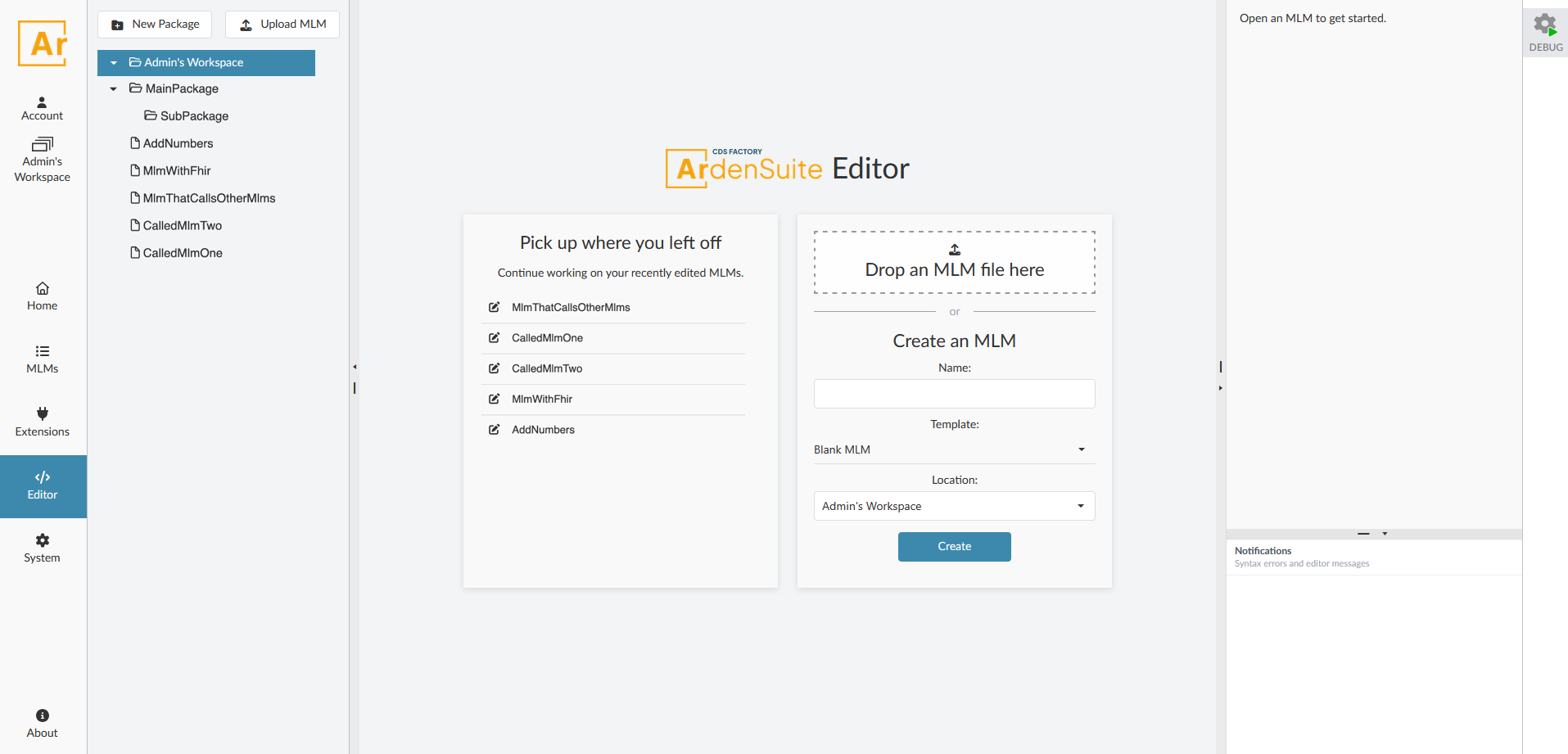
The editor is the main point for knowledge engineering by creating and editing medical logic modules. It consists of three main areas:
- File manager on the left displays packages and their MLMs. Modules can be opened for editing with a click. In all other regards, it works exactly as described here.
- Content area in the middle displays the main ways to get started with editing (recent modules, upload a module or create one) if no MLM is open or the tabbed source code editor if at least one MLM is open.
- Side panel on the right contains useful tools for the currently opened MLM.
- The side panel also contains the notification area on the bottom, which displays syntax errors of the current MLM.
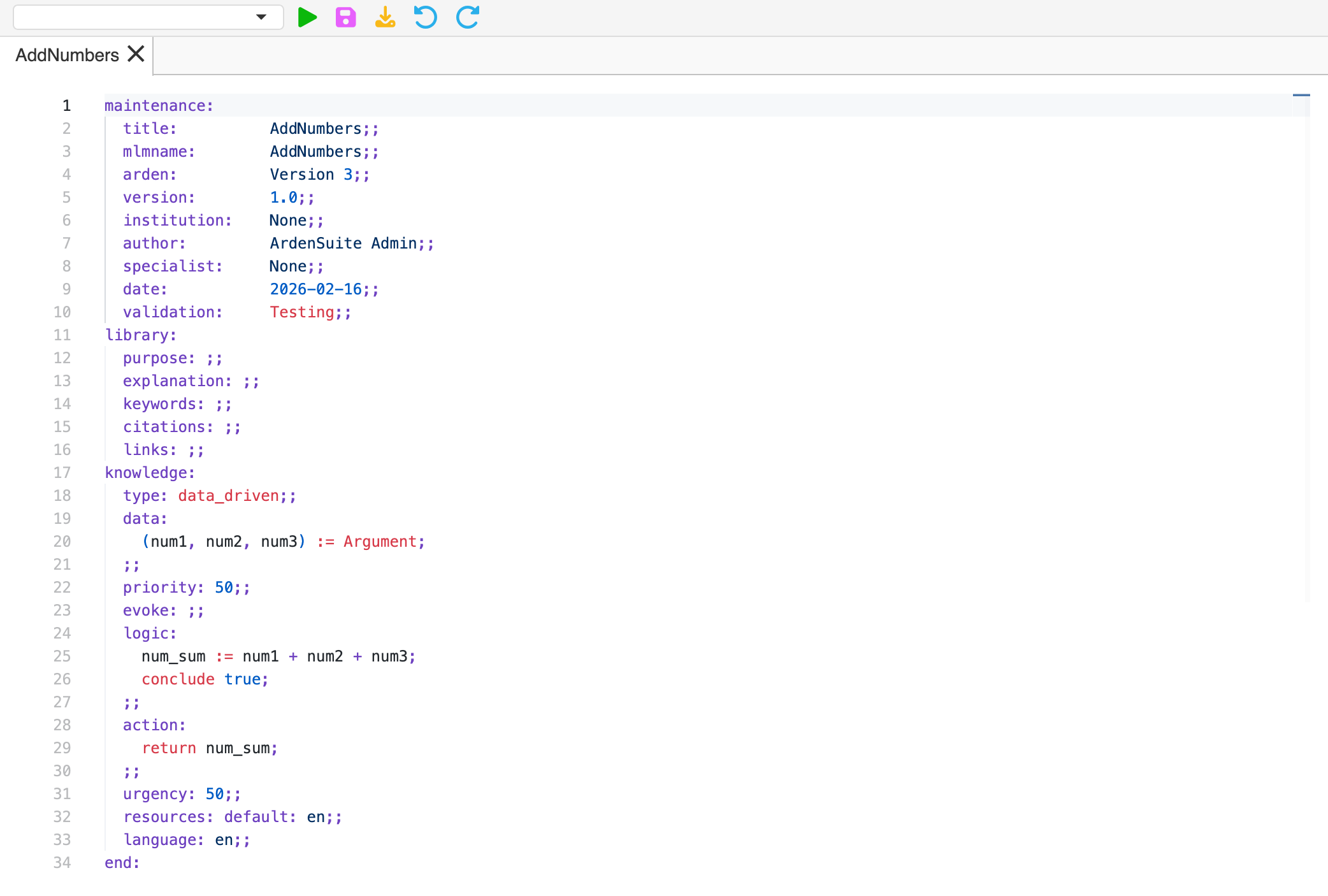
When one or more MLMs is opened, the content area displays a tabbed editor view and a hotbar of quick actions up top.
Auto-Save
When medical logic module source code is edited, the MLM will be saved automatically exactly one second after typing has ceased. This logic is currently not configurable.
WARNING
MLMs with syntax errors
It is permitted to save MLMs with most syntax errors, although they will not be executable in that state.
When ArdenSuite cannot parse mlmname, version and institution out of maintenance category, it will refuse saving the MLM as that information is needed for categorization in the database.
Tabbed view
Multiple MLMs can be opened in the editor, and each new MLM will open a new tab. Tabs can be selected and closed  as is common behaviour. When all tabs are closed, the editor will return to the landing page view. All editor operations center around the MLM in the currently active tab.
::info Your currently opened tabs and their contents are saved on your computer and restored when the editor is opened again on that machine. They are currently not synchronized across computers. ::
Quick actions
The quick actions panel features:
 a selection field for debug configuration and a run button to run it (see debugging)
 a save action
 a download action
 undo and redo actions
Syntax errros
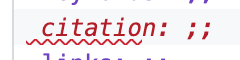
When an error in syntax is detected, the error is marked in the source code with the usual red lines. Additionally, the exact nature of the syntax error can be reviewed in the notifications panel, where more precise error messages are listed.
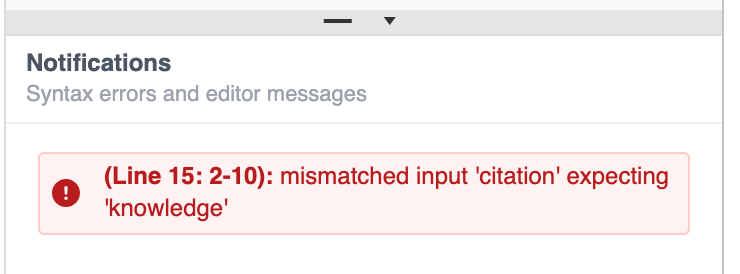
In case too many syntax errors appear, the notifications panel can be expanded vertically by grabbing the grey handle. It can be hidden entirely or made to appear again by clicking the little arrow in that handle.