
Appearance
Workspace Management
In ArdenSuite, every item of content such as MLMs or Extensions is assigned to a workspace. User accounts can be granted access to one or more workspaces, enabling both collaborative and private workspaces. Workspace content is normally strictly separated and cannot interact with each other (e.g. MLM calls and extension usage).
Workspaces can be created as children to other workspaces, in which case they will be able to interact with the content of the parent workspace, but not the other way around.
WARNING
Sharing content between workspaces is currently in a trial phase and may not always work as expected. It is recommended to keep workspace structure flat for production usage.
Workspaces can be used for departments, or different clinical categories, or as private development environments. It is the role of the System Administrator or Workspace Manager to create, remove and edit these workspaces.
Create a workspace
Top-level or child workspace
You can create either a top-level or a child workspaces. If you want to create a top level workspace, click the  button.
To create a child workspace, right click the parent workspace and click Create in the conteext menu.

Finish creating workspace
In any scenario, a popup will ask for the name of the new workspace.
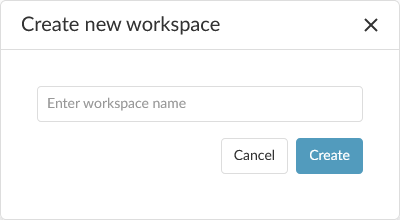
In the Popup, enter a name for the workspace and click  to create it.
Remove a workspace
Removing a workspace will delete all MLMs, Extension and role assignments associated with it. You cannot remove a workspace that has children.
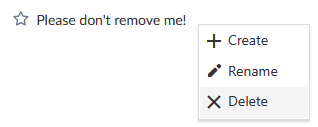
To remove a workspace, right click it and select Remove:
A popup will ask you to confirm deletion:
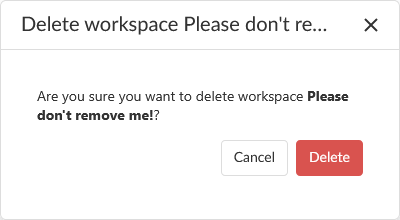
Confirm the deletion with Delete.